
How to Generate AI Videos in Claude Code (Seedance, Veo, Kling)
Disclosure: some links in this post are affiliate links. If you buy through them I may earn a commission at no extra cost to you. I only recommend tools I actually use. Full disclosure.
This guide shows you exactly how to generate a Claude Code AI Video using OpenRouter and models like Seedance 2.0, Veo, and Kling, all without leaving the terminal.How to Generate AI Videos in Claude Code with OpenRouter
You've probably bounced between four different AI video apps just to get one usable clip. That stops once you wire OpenRouter into Claude Code.
I tested this with a 10-second NYC drone flyover using ByteDance's Seedance 2.0. The output came back inside the same Claude Code session I use for everything else, no separate tab, no second login.
If you want the same Short Video Creator skill I used in the demo, my Claude Code Skills Stack ships with it plus 20+ more marketing skills.
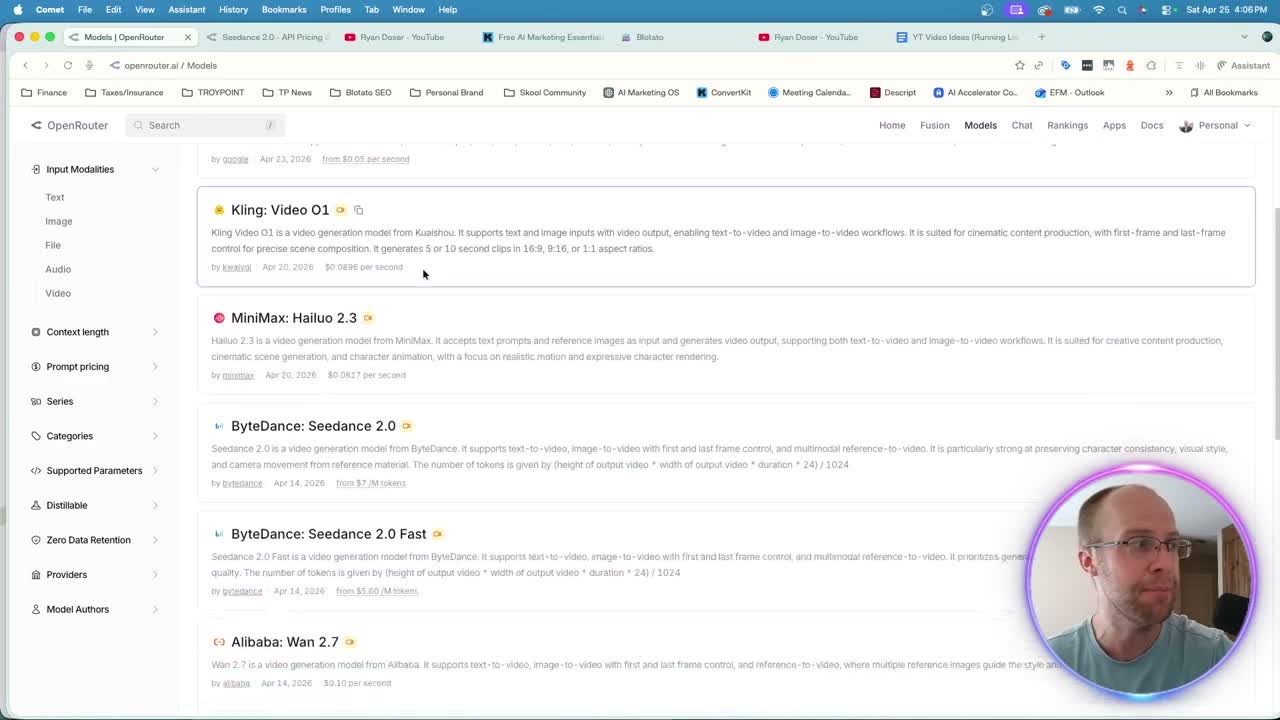
OpenRouter acts as one API key for every video model on the market. ByteDance Seedance 2.0, Google Veo 3.1, Kling, MiniMax Hailuo, Sora 2 Pro, and Alibaba Wan all live behind a single endpoint. You can browse the full list on the OpenRouter video models page and pricing scales per second of output. If a new model drops next month, OpenRouter usually picks it up within days, which means your Claude Code AI video setup keeps working without any rewrites on your end.
Setting Up OpenRouter for Claude Code AI Video Generation
Five minutes of setup buys you every video model from one key.
Here's the exact flow I use to generate AI videos in Claude Code:
- Sign up free at OpenRouter
- Add 10 to 15 dollars in credits since video generation costs more than text
- Create an API key under the API Keys tab and name it something like claude-code-test
- In your project root, create an APIs.env file and paste the key inside
- Reference that file in any Claude Code prompt that needs video
That's the whole connection. Claude Code reads the key, calls the model you specify, and writes the file back to your project. Rotate the key every few months as a security habit. If you've never paired Claude Code with marketing workflows before, my breakdown on why marketers should use Claude Code walks through the bigger picture.
Running Seedance 2.0, Veo, and Kling Through Claude Code
One Claude Code session can call Seedance, Veo, and Kling without any extra plumbing.
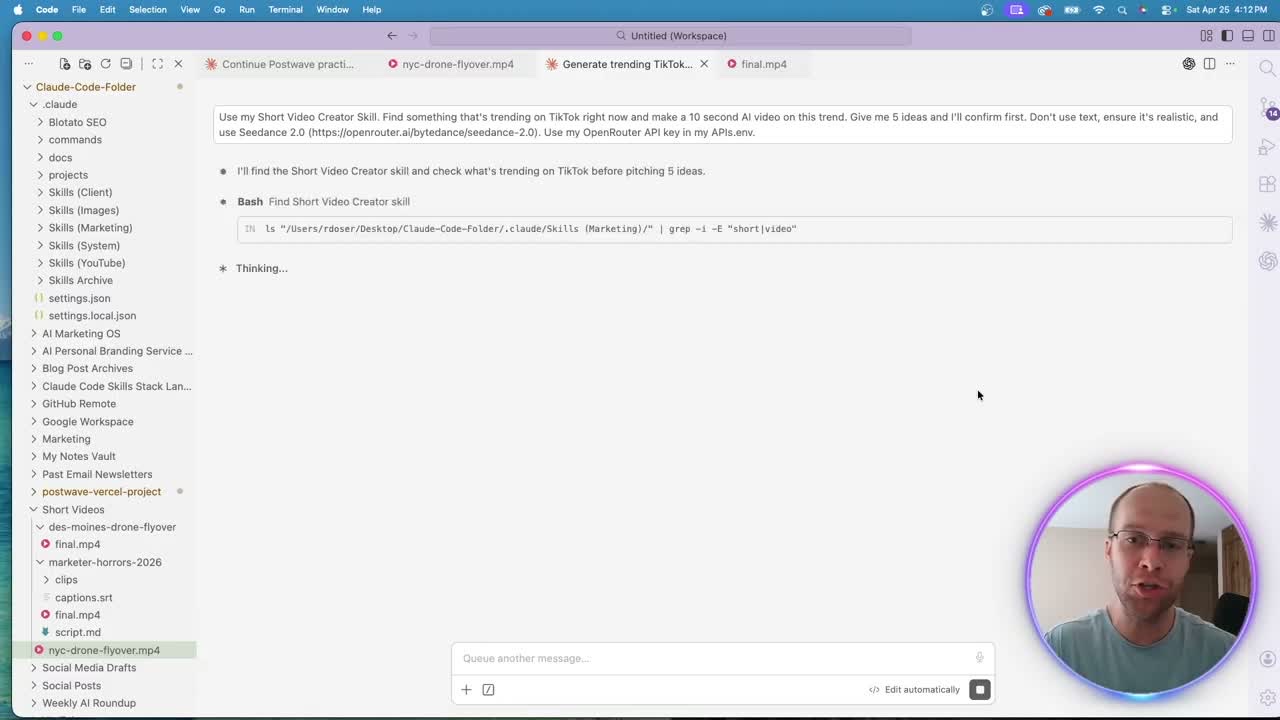
For my test I used my Short Video Creator skill with this prompt: find something trending on TikTok, make a 10-second AI video, no text, realistic, use Seedance 2.0. I pasted the Seedance 2.0 model page so the skill could confirm the exact slug.
Want a different model? Swap Seedance 2.0 for Veo 3.1 or Kling in the same prompt. Same workflow, different output style. That is the entire point of routing through OpenRouter.
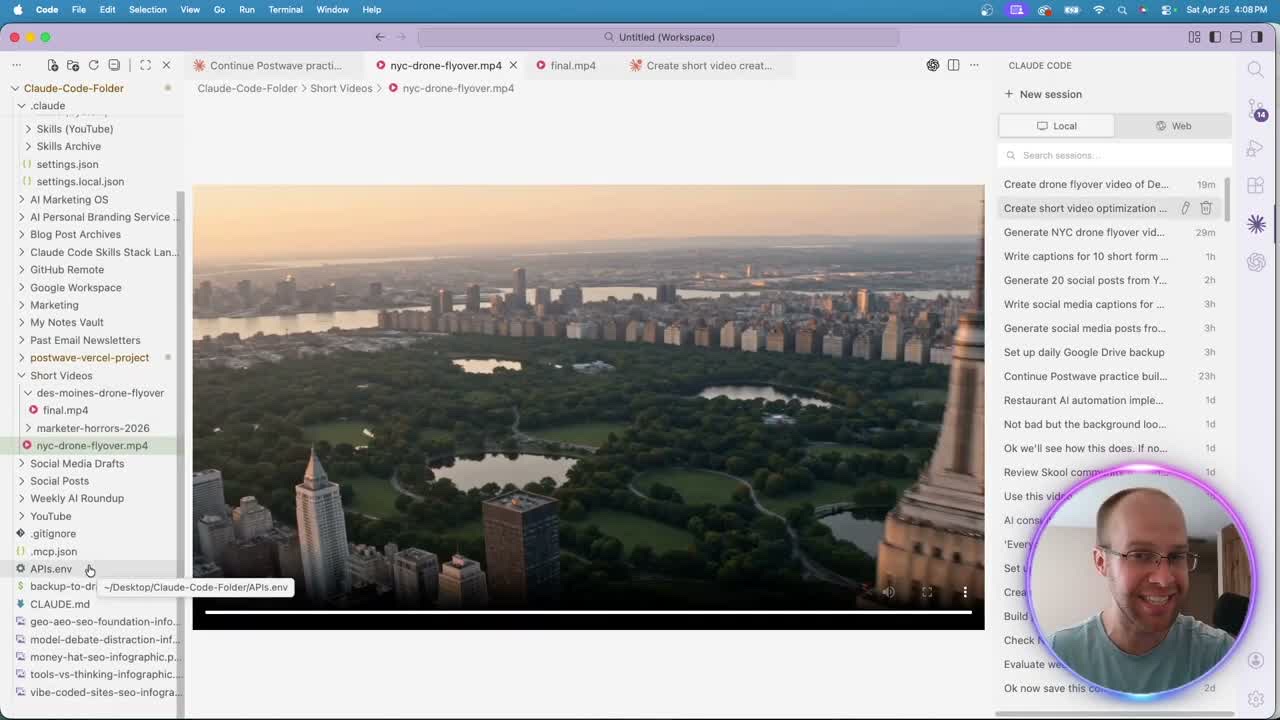
The 10-second NYC drone clip cost $1.51 to generate. Quality was solid for B-roll. Realism held up at full screen on a 27-inch monitor, which is a higher bar than most demo clips clear.
What Claude Code AI Video Can and Can't Do Yet
Is the output good enough to post on social media today?
Honest answer: not on its own. The first test I ran was a Fruit Love Island trend clip with no music and no captions. Visually fine. But a silent 10-second video with no overlay does not perform on Reels or TikTok.
What works right now:
- Drone B-roll, scenery, product shots, abstract motion
- Clips under 15 seconds since quality drops noticeably past that
- Footage you'll edit afterward in CapCut, Descript, or Premiere
What doesn't:
- Native audio or music generation
- On-screen text or captions baked into the clip
- Anything over 15 seconds without an obvious quality drop
Pair this Claude Code AI video workflow with a captioning step and a music overlay and the output starts to compete. As the models improve, the system you built today still works. That same logic applies to Claude Code AI marketing agents running other parts of your stack.
Connecting Blotato to Auto-Post Your Claude Code AI Video
Generate, caption, and post in one Claude Code session.
Once a video is sitting on your local drive, Blotato plugs into Claude Code via MCP and pushes the file to every social platform you've connected. Generate with Seedance, post with Blotato, all from the same chat. If you're piecing together a full AI marketing stack, this is one of the cleanest endpoints to add.
That's the long-term play. The video model will keep changing. The pipeline doesn't.
Ryan's Final Thoughts
The point of this isn't the Fruit Love Island clip. It's the system. As Veo, Seedance, Kling, and Sora all keep improving, anyone with a Claude Code AI video setup wired up today ships first when the next model drops. Try it on one drone clip this week and see how it feels inside your existing Claude Code workflow.
Claude Code AI Video FAQs
How do I generate AI videos in Claude Code?
Connect OpenRouter to Claude Code with an API key stored in an APIs.env file, then prompt Claude Code to call a video model like Seedance 2.0, Veo 3.1, or Kling. The model returns a video file Claude Code saves to your project. The full setup runs in under five minutes.
Which AI video model is best inside Claude Code?
Seedance 2.0 from ByteDance is the strongest realism option as of April 2026. Veo 3.1 handles cinematic motion well. Kling is a solid third for stylized output. OpenRouter lets you swap between them with a single prompt change, so test all three on the same scene.
How much does a Claude Code AI video cost?
Around $1.50 per 10-second clip on Seedance 2.0. Pricing runs per second and varies by model, with Veo and Sora 2 Pro on the higher end. Add at least 10 to 15 dollars in OpenRouter credits before testing so you don't run out mid-generation.
Can Claude Code generate AI video with audio or captions?
Not natively. Current models output silent video clips with no on-screen text. Add music and captions in a separate editor like CapCut or Descript, or use a Claude Code skill to overlay them in a follow-up step before posting.