
How to Scrape LinkedIn Profiles With Claude Code (Free)
If you want to pull post analytics from LinkedIn without paying for expensive tools, you can scrape LinkedIn profiles with Claude Code using a free Apify account and a simple skill file.
How to Scrape LinkedIn Profiles With Claude Code
Most AI chatbots will flat-out refuse this request. Ask ChatGPT, Claude's web app, or Google Gemini to scrape a LinkedIn profile, and you'll get the same response: "I'm not able to scrape LinkedIn directly."
LinkedIn blocks automated scraping and requires authentication to access profile data. That means you need a workaround. The solution is pairing Claude Code with Apify, a marketplace of pre-built scrapers for LinkedIn, Instagram, TikTok, Google Maps, and more.
If you want to go deeper on building AI-powered marketing workflows, I put together a guide with everything I use daily.
Get my free AI Marketing Essentials Guide
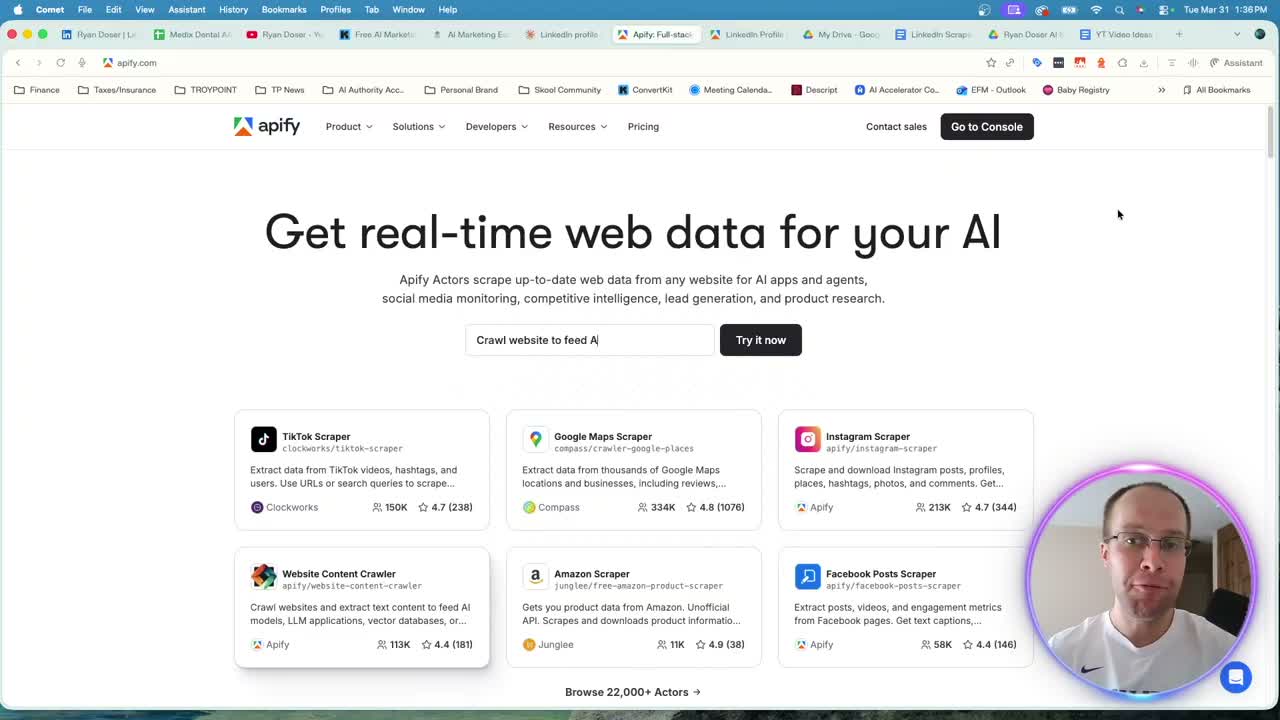
Setting Up Apify for LinkedIn Scraping
You only need two things to get started: a free Apify account and your API key saved in Claude Code.
The specific scraper I use is the LinkedIn Profile Posts Scraper from Harvest API. It costs $2 per 1,000 posts, requires no cookies, and works without a paid Apify subscription. Apify's free tier gives you $5 of usage every month, which covers roughly 2,500 posts.
Here is how to connect it:
- Create a free account on Apify
- Go to Settings, then API and Integrations
- Copy your API token
- In Claude Code, tell it to save your Apify API key in your environment file
Storing API keys in an .env file is more secure than pasting them directly into a chat. This matters as you scale and add keys for other services. If you're new to Claude Code integrations and MCPs, that approach keeps everything organized.
Running the LinkedIn Profile Scraper Skill
Once your API key is saved, open a fresh Claude Code chat and tell it to use your LinkedIn profile scraper skill. Point it at any public LinkedIn profile URL and specify how many posts you want scraped.
In my test, I scraped my last 50 LinkedIn posts and asked Claude Code to export everything as a CSV file. The fields included post date, URL, post type, likes, comments, shares, and a custom engagement score that ranks posts against each other.
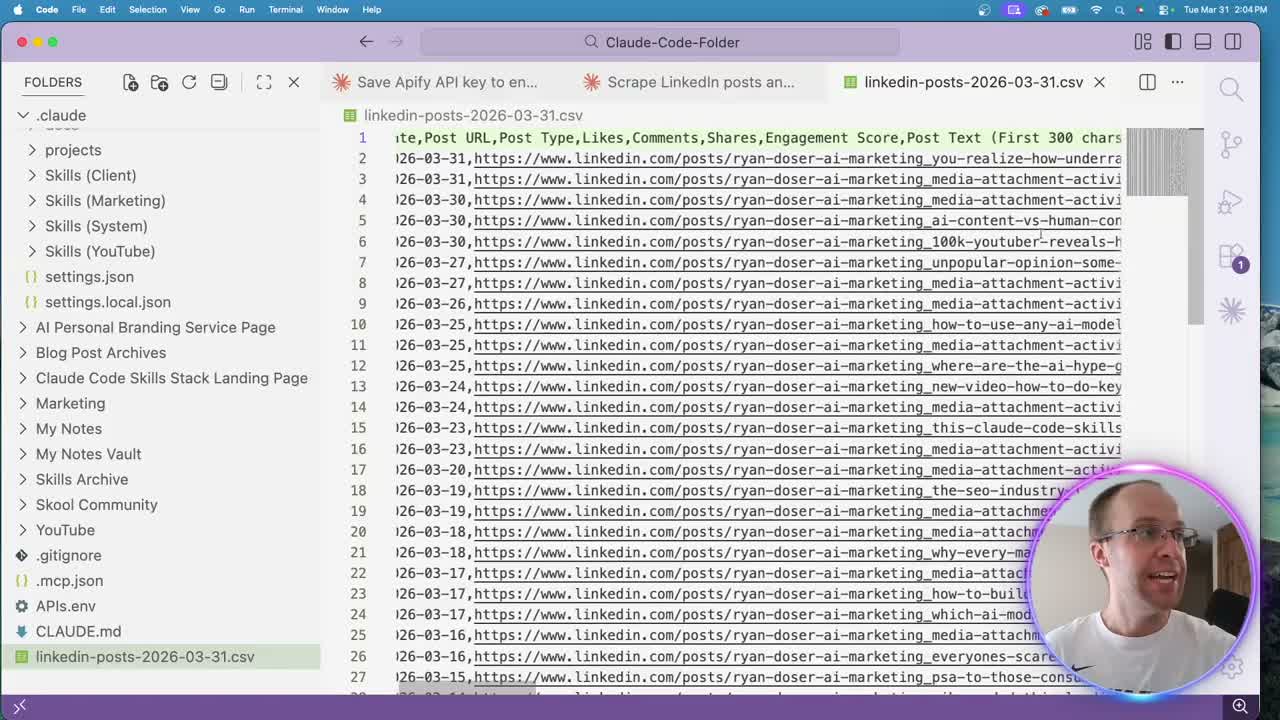
The whole process took a few minutes. Claude Code called the Apify actor, pulled the data, and formatted it into a clean spreadsheet. You can download my LinkedIn scraper skill from my Claude Code Skills Stack and drop it right into your setup.
Analyzing Your LinkedIn Post Data
Reading a CSV in VS Code is not ideal for analysis. I dragged the file into Google Drive and opened it with Google Sheets. That gives you sorting, filtering, and a much cleaner view of your post performance.
The engagement score column stood out immediately. My highest-scoring post (a 10 out of 10) was a personal update about expecting my first child. Personal posts consistently outperform promotional content on LinkedIn, and the data confirmed that pattern across all 50 posts.
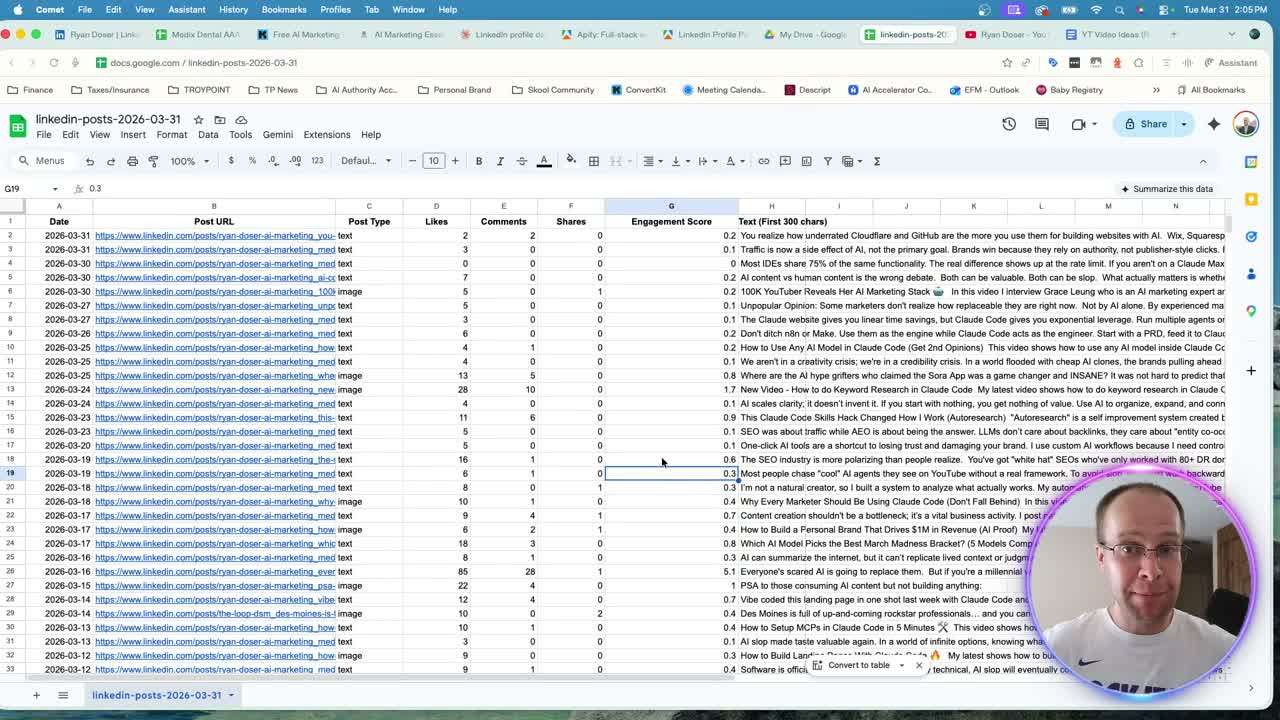
Every row links back to the original post URL. You can click through to see exactly what performed well and why. The post text column also gives you raw copy to reference when planning future content. If you're looking for more ways to use Claude Code for marketing, scraping LinkedIn is one of the most practical starting points.
What This Costs (Almost Nothing)
My 50-post scrape cost $0.10. That is ten cents for a full breakdown of post dates, engagement metrics, URLs, and content text. You could run this 50 times on the free tier before hitting the $5 monthly limit.
The Apify API documentation covers rate limits and additional configuration if you want to scale beyond the free tier. For most individual creators and marketers, the free plan handles everything you need.
One thing to watch: Apify actors change over time. Pricing can shift, and some actors move behind paid plans. If that happens, Claude Code will often search for alternative scrapers automatically. Building Claude Code skills around these workflows makes it easy to swap actors without rebuilding from scratch.
Final Thoughts from Ryan
Scraping LinkedIn profiles with Claude Code takes minutes to set up and costs almost nothing. The real value is in the analysis. Once you have post-level engagement data in a spreadsheet, you can spot patterns in what resonates with your audience and double down on those formats going forward.
Scrape LinkedIn Profiles Claude Code FAQs
Do I need a paid Apify account to scrape LinkedIn with Claude Code?
No. Apify's free tier includes $5 of monthly usage. The Harvest API LinkedIn scraper costs $2 per 1,000 posts, so you can scrape thousands of posts each month without spending anything.
Does this scraper require LinkedIn cookies or login credentials?
The Harvest API actor works without cookies or authentication. You do not need to log into LinkedIn or share any credentials with Apify to pull public profile post data.
Can I scrape any LinkedIn profile or just my own?
You can point the scraper at any public LinkedIn profile URL. It works for your own profile, competitor profiles, or any creator whose content you want to analyze.
What data fields does the LinkedIn scraper export?
The CSV includes post date, post URL, content text, post type, likes, comments, shares, and a custom engagement score. You can add or remove fields by adjusting your Claude Code prompt.